
Metaskills.net Blog | February 4, 2006
Mini Network with a Big XServe Style
So like most people that create networks I did not realize that the Mac Mini includes 3 high speed network
interfaces and that with a little bit of work and the right architecture they can be used to operate in much the same
manner one would see in a high-end network operations centers. I manage one such NOC and I wanted my home network to
function like most companies who do serious business online. These features typically include:
* Internal LAN Network Interfaces - (10.0.1.0/24 Addresses)
* Internal Perimeter Network (DMZ) Behind a NAT or Port Forwarding Firewall
* Both Internal (LAN) and External (Public) DNS Services
* IP Over Firewire Connections - (192.168.1.0/25 Addresses)
* Hard Drive Redundancy and Backup Using RsyncX - (typically RAID 1 or 5)
Starting At The End
Below is a simple diagram of my final network. I had to lose a few features from the list above or even change
their meaning a bit, but I did end up with a network that utilizes most of them.
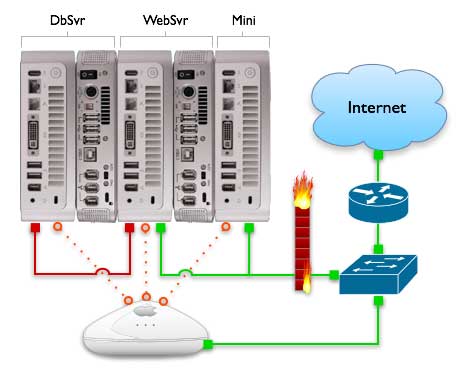
First thing on the list that is the most important feature. A local area network that allows connections to each server without going outside to the public internet and thus taking up valuable bandwidth to those public interfaces. It's also good for security! The AirPort Extreme I had did this quite well by setting it to share a network connection using DHCP and NAT on the 10.0.1.0/24 subnet. The AirPort internet connection is setup to DHCP to my ISP from it's WAN port. Each Mac Mini's AirPort network interface is manually set on it's own IP address that never changes. This will need to be done so you can assign it an internal DNS name and reverse PTR record.
Internal DNS Services ( WebSvr Mini )
Now that we have an internal LAN we can use this to host our own DNS so that machines on the local network
including my powerbooks and other systems will use the AirPort interfaces for services. For instance, if I browse to my
website from home, I am not using the public interface and bandwidth, but rather the IP with the AirPort address. The
WebSvr Mini was my best choice for hosting DNS and I have BIND 9 configured to only listen for queries on the local
127.0.0.1 IP and it's own 10.0.1.x AirPort IP address. BIND is also configured to forward all unknown queries to my ISP.
It's very important to set the basestation's internet tab to use the WebSvr Mini's 10.0.1.x AirPort IP address for DNS,
rather than your ISP. In this way, all clients that are not manually configured to do so will use the WebSvr mini for
DNS and hence the AirPort interfaces on each server for services. I hope I have not lost you yet. When using internal
DNS the right way, all local traffic such as Apache, Apple Remote Desktop, Database, SSH, etc. are all done locally and
fast. So do not forget to tell Apache it can listen on that port.
IP Over Firewire Database Connection ( DbSvr Mini )
The DdSvr Mini is using Apple's IP over firewire capabilities to connect to the WebSvr Mini. I have a patch
cable connected to the WebSvr Mini with static IP addresses on both ends using the 192.168.1.0/24 subnet. For
convenience each of the 192. addresses ends with the same number as their respective 10. AirPort addresses. This is the
3rd network interface that most people are not aware of. It has limitations but used wisely it can be very useful and
fast. In the set up above I am able to keep all database traffic entirely off of my internal switch and localized to
that one patch cable. Unless of course, I decide to access the DbSvr Mini using it's LAN/AirPort address. Either way,
this machine is totally off the public network and quite secure.
Other Services ( Mail and External DNS )
That's what the other unlabeled Mini is for. I have it configured to for mail and public DNS. Postfix is
happily listening on it's public and private addresses while DNS is only listening on the public IP. This server also
does not have an external drive (see below) since I am not worried about it's performance since the overhead is quite
low for those two services.
Firewall Services
In this setup I did loose the ability to have private addresses for my two public Minis. Hard core network
engineers would point out that this would be another layer of security by having a single firewall/router filter and
translate packets to these two boxes. I agree and it makes for a nice portable network too. But, I am more than happy
running the ipfw service built into OS X Server that is running on each Mac Mini. It is a great stateful firewall and
it's not really a configuration nightmare to maintain each one. All in all, its what I call the RONCO network, set it
and forget it. Now on to fixing some of the deficiencies for the Mac Mini.
Improving Hard Drive Performance
One of the first drawbacks to the mac mini is it's poor hard drive speed. This can be a real big hit on
performance when it comes to hosting a descent web or database server. Thankfully there are alternatives including
upgrading the internal drive with a faster form factory laptop drive. However, these can be expensive and if you are
like me and have a few Barracuda 7200 RPM 3.5 inch external drives laying around, you could save a lot by purchasing an
inexpensive firewire enclosure. I decided on the miniStack from newertechnology since it had the best cooling features
and good Mac Mini style. More importantly it sells with a driveless option and comes with firewire cables. A deal for
only $69.00 for the entire kit.
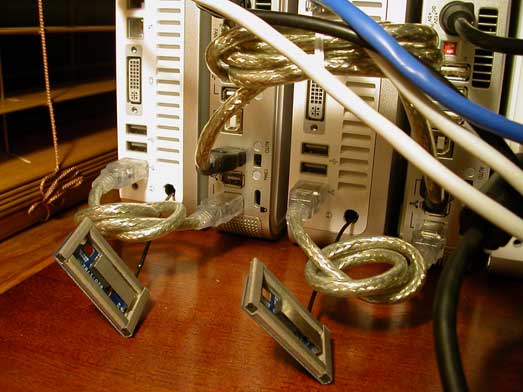
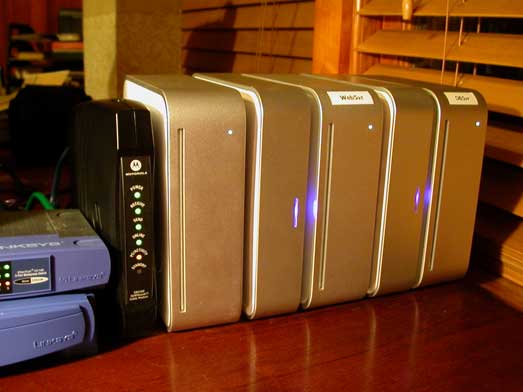
I purchased (2) of these, one for each Mini who's performance I was really concerned about, one for the web server and one for the database server. Each of those Macs boot directly from that external drive connected via firewire, the internal drive is used as a back up. Currently I have the DbSvr Mini setup as an RsyncX server and every night each of the 3 servers backs up to it's internal hard drive. That's a separate post in itself.
Improving AirPort Signal Strength
I was really surprised to find out how poor the Mac Mini's AirPort signal strength was after you stack
something on top of it. My extreme basestation was only a few feet away and the interference from the drive enclosures
was so bad that I could not connect two of them that were in the middle of my stack. Thankfully, I was no stranger to
taking apart my Mac Mini. In fact, I had installed AirPort cards on all of them since it was cheaper for me to do so and
I had an idea! So be warned, the following steps will void your warranty – but if you want to get good AirPort
strength and this was a must for me, here is some helpful instructions.
First though, the links below are a parts lists links to Mac-Pro.com. If you are wanting to install an AirPort extreme card in a Mac Mini, these are the parts you will need. Secondly, my AirPort signal strength "fix" below is by no means a comprehensive step by step for a first timer into the Mac Mini. I highly recommend PBFixIt.com's Mac Mini Take Apart Guide for that.
Mezzanine Board for Mac Mini
AirPort Antenna for Mac Mini
Screws for Mac Mini Mezzanine Board
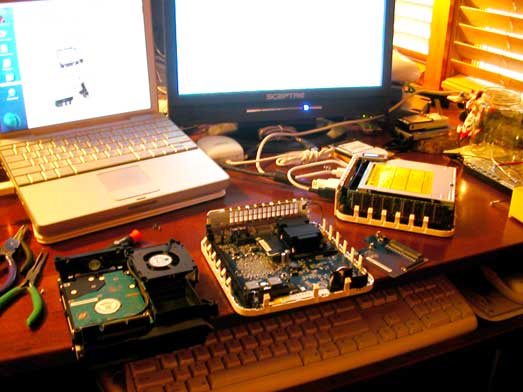
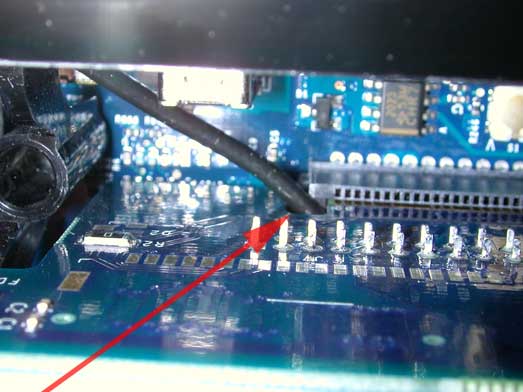
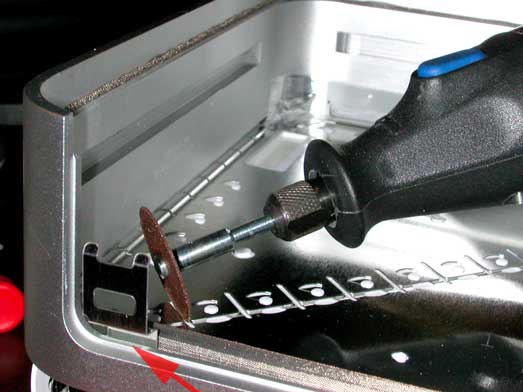
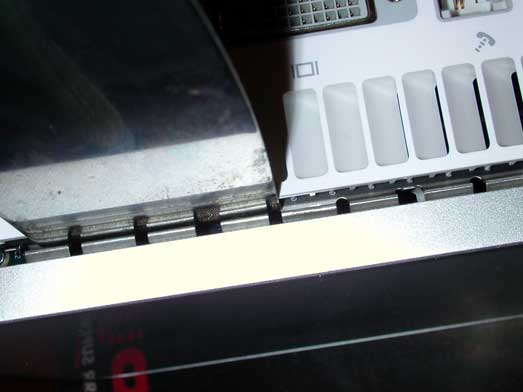
OK, now to the fun part, Improving your AirPort signal strength. You will need to get a good clean work area setup and take apart your Mac Mini down to the mezzanine board where your AirPort card is installed. Do not actually take that out, we are just going to reroute the cable. Just unplug the AirPort extreme antenna. My best attempt at a clean work area. Remember to unplug the AirPort antenna from the extreme card.
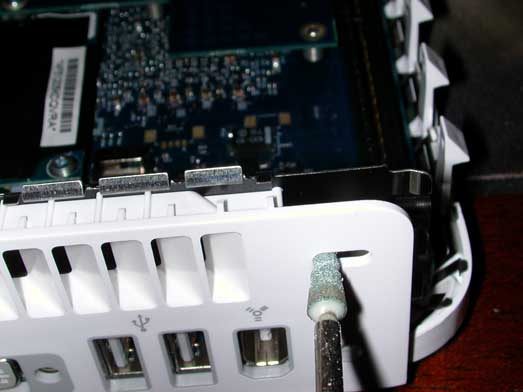
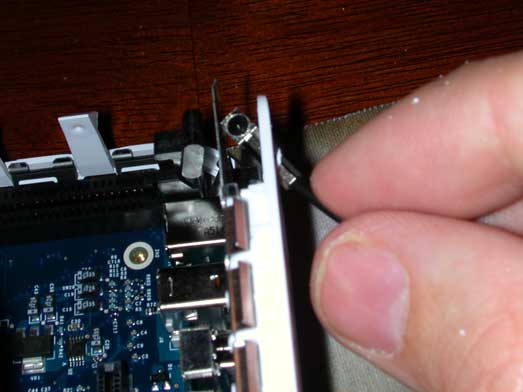

That's it! If you have any questions, please let me know. Or perhaps, maybe you have some ideas on what I could work on for version two of the network?
To see the article as it appeared in the original published form, click the link provided.
All stories have been captured without modification to their content.